

Web Accessibility Checklist: WCAG and ADA Steps for 2026

Aim for WCAG 2.1 Level AA as your compliance target, then run three checks before you do anything else: does every meaningful image have alt text, do your videos have captions, and can you navigate the entire site using only a keyboard? If any answer is no, you’ve found your first tickets. U.S. Department of Justice guidance for public entities treats WCAG 2.1 AA as the technical benchmark, and it’s the same bar most private businesses should build toward to reduce legal exposure and actually serve every visitor.
Run these three checks right now, in this order:
- Alt text spot check: Open your homepage and one product or service page. Right-click three images and inspect for missing or empty
altattributes on meaningful content. - Caption check: Play any video with sound. If there’s no caption track or transcript link, that’s a gap.
- Keyboard-only pass: Unplug your mouse. Tab through the main navigation, a form, and any menu. If focus disappears or you get trapped, you’ve found a blocker.
Once you’ve run those, kick off an automated scan with Lighthouse or Axe DevTools, then do a 60-second manual pass with a screen reader like NVDA or VoiceOver on your busiest page. That combination catches the loudest problems fast, and everything below tells you how to fix what you find.
Key Takeaways
Meeting WCAG 2.1 AA requires pairing automated scans with manual keyboard and screen reader testing, then prioritizing fixes by user impact and frequency.
| Point | Details |
|---|---|
| Target WCAG 2.1 AA | Treat Level AA as the baseline standard referenced by DOJ guidance for public entities and courts in Title III cases. |
| Automated tools aren’t enough | Run Lighthouse, Axe, or WAVE first, but always follow with manual keyboard and screen reader checks. |
| Fix by impact, not by ease | Prioritize high-impact, high-frequency barriers like broken keyboard navigation before minor cosmetic issues. |
| Document exceptions | If using equivalent facilitation instead of straight WCAG conformance, write down the justification. |
| Webtechs handles audit-to-fix | Webtechs runs the full workflow, audit, remediation plan, implementation, and re-test, for Arizona businesses under one contract. |
Table of Contents
- Web Accessibility Checklist at a Glance
- What Standards Actually Govern Website Accessibility in the U.S.?
- Detailed Accessibility Checklist by Website Component
- How Do You Test a Website for Accessibility Compliance?
- How to Prioritize Accessibility Fixes
- Building an Accessibility Policy Your Team Will Actually Follow
- How Webtechs Runs an Accessibility Audit
- Why Accessibility Is a Business Decision for Arizona Companies
- Get Professional Help Finishing Your Accessibility Remediation
- Where to Go for Authoritative Accessibility Guidance
- Sources
Web Accessibility Checklist at a Glance
Here’s the compact version, organized by the four WCAG principles: Perceivable, Operable, Understandable, and Robust (POUR). Paste this into a sprint board and assign owners.
Perceivable
- Every meaningful image has descriptive alt text; decorative images use
alt="". - Videos have captions; audio-only content has a transcript.
- Text contrast meets 4.5:1 for normal text and 3:1 for large text.
- Content resizes to 200% without breaking layout or losing function.
Operable
- Every interactive element is reachable and operable by keyboard alone.
- Focus order follows a logical reading sequence, and focus is always visible.
- No content flashes more than three times per second.
- Skip links let users bypass repeated navigation blocks.
Understandable
- Form fields have visible, programmatically associated labels.
- Error messages describe what went wrong and how to fix it, not just “invalid.”
- Navigation and labeling stay consistent across pages.
- Page language is set in the HTML (
lang="en").
Robust
- Markup validates and uses semantic HTML elements over generic
<div>soup. - ARIA roles are used only when native HTML can’t do the job, and they’re implemented correctly.
- Custom components (modals, tabs, accordions) work with assistive tech, not just a mouse.
A few items above account for most of what automated scanners flag first: color contrast, missing alt text, and unlabeled form fields show up in nearly every scan report, regardless of industry or platform.
Pro Tip: Create a shared “alt text policy” doc with three examples: decorative, informative, and functional images. Most teams don’t fail because they forget alt text. They fail because nobody agreed on what counts as decorative versus meaningful.
Pro Tip: Bake color contrast into your design tokens instead of leaving it to individual designers. If your brand blue fails 4.5:1 against white, fix the token once instead of chasing every instance across the site later.
Automated scans routinely miss context-dependent problems: an alt text that says “image123.jpg” instead of describing the photo, a heading structure that skips from H1 to H4, or a form that’s technically labeled but confusingly ordered. Those need a human pass, which is where the testing section below comes in.
What Standards Actually Govern Website Accessibility in the U.S.?
WCAG is the technical foundation everything else in U.S. web accessibility law points back to. The Web Content Accessibility Guidelines, published by the W3C’s Web Accessibility Initiative, organize every success criterion under the four POUR principles and define three conformance levels: A, AA, and AAA. Level AA is the practical target for nearly every organization, public or private, because it balances real-world usability with achievable technical work.
Section 508 applies specifically to federal agencies and contractors. It sets technical requirements for federal websites, software, and electronic documents, and it references WCAG success criteria directly rather than inventing a separate rulebook. If you build websites or apps for government clients in Arizona or elsewhere, Section 508 compliance usually means WCAG 2.1 AA compliance with some added documentation requirements around procurement.
ADA Title II and Title III are where most business owners get confused. Title II covers state and local government entities. The DOJ’s 2024 rule under Title II names WCAG 2.1 Level AA as the specific technical standard public entities must meet, with phased compliance dates depending on jurisdiction size. Title III covers private businesses that operate as “places of public accommodation,” which courts have increasingly interpreted to include commercial websites. There’s no equivalent named technical standard baked into Title III regulation the way there is for Title II, but courts and DOJ guidance consistently point to WCAG 2.1 AA as the reasonable benchmark when accessibility lawsuits get litigated.
The DOJ’s rule does allow for what it calls “equivalent facilitation,” meaning an organization can use an alternative approach if it provides equal or greater accessibility than WCAG 2.1 AA. In practice, this exception is narrow. It applies to specific content types under specific conditions, and using it without documentation is a bad bet if you ever face a complaint or audit. If you’re relying on equivalent facilitation instead of straightforward WCAG conformance, write down why, and treat that documentation as seriously as you’d treat a signed contract.
A few situations call for legal counsel rather than a developer checklist:
- You’re a public entity approaching a DOJ compliance deadline and unsure which tier applies to your jurisdiction’s size.
- You’re negotiating a vendor or procurement contract that includes accessibility warranties or indemnification language.
- You’ve received a demand letter or complaint alleging ADA non-compliance.
- You’re deciding whether “equivalent facilitation” applies to a specific piece of legacy content.
For everyone else, WCAG 2.1 AA compliance, documented and tested regularly, is the strongest practical defense you can build. Arizona businesses don’t get a pass on Title III exposure just because they’re not California or New York. Accessibility lawsuits have hit small and mid-sized businesses across every state, and the fastest way to reduce that risk is to fix the actual barriers rather than bet on obscurity.
Detailed Accessibility Checklist by Website Component
This is the working checklist. Each item maps to a WCAG success criterion, gives you a quick way to test it, and shows what a fix looks like in code.
Images and non-text content
Every image needs a decision: is it meaningful or decorative? Meaningful images (product photos, infographics, charts) need alt text that conveys the same information a sighted user would get. Decorative images (background textures, spacer graphics) need an empty alt attribute so screen readers skip them entirely.

This maps to WCAG 1.1.1 Non-text Content. To check it, run a browser extension like the WAVE toolbar, which flags every image and shows you its detected alt value.
<img src="roof-repair-before-after.jpg" alt="Roof before and after storm damage repair, showing new shingles and flashing">
<img src="divider-line.png" alt="">
The most common mistake here isn’t a missing alt attribute. It’s a lazy one: alt="image" or alt="photo1.jpg" technically satisfies an automated scanner but tells a screen reader user nothing.
Audio and video content
Every video with spoken content needs captions, and every audio-only file needs a transcript. This covers WCAG 1.2.2 Captions (Prerecorded) and 1.2.1 Audio-only and Video-only. Live video eventually needs live captions too, though that’s a heavier lift most small businesses phase in over time.
Check this by playing content with the sound off. If you can’t follow what’s happening, a deaf or hard-of-hearing visitor can’t either. YouTube’s auto-generated captions are a starting point, not a finished product. They routinely mangle names, technical terms, and background noise, so budget time to edit them before publishing.
Headings and semantic HTML
Screen reader users navigate by heading structure the way sighted users scan a page visually. A page needs exactly one H1, and headings need to nest logically. H2 sections shouldn’t jump straight to H4 subheadings.
This maps to WCAG 1.3.1 Info and Relationships. Test it using a browser’s accessibility tree inspector or a heading-outline extension.
<h1>Custom Web Design Services in Scottsdale</h1>
<h2>Our Process</h2>
<h3>Discovery and Planning</h3>
<h3>Design and Development</h3>
<h2>Pricing</h2>
Semantic HTML matters beyond headings. A <button> element comes with keyboard support and screen reader announcements built in. A <div onclick="..."> styled to look like a button has neither, unless you manually rebuild all that behavior with ARIA and JavaScript. Native HTML almost always beats a custom-built equivalent.
Color and visual contrast
Text needs a contrast ratio of at least 4.5:1 against its background for normal-sized text, and 3:1 for large text (18pt or 14pt bold and larger). This maps to WCAG 1.4.3 Contrast (Minimum).
A light gray (#999999) on white background fails this test outright, landing around 2.8:1. Darkening that same gray to #767676 gets you to 4.54:1, which passes. Tools like the WebAIM Contrast Checker or the contrast checker built into Chrome DevTools will give you the exact ratio in seconds.
Color alone should never carry meaning either. If your form flags an error field only by turning the border red, colorblind users miss the signal entirely. Pair color with an icon, text label, or both. This falls under WCAG 1.4.1 Use of Color.
Keyboard access and focus order
Every interactive element, links, buttons, form fields, custom widgets, needs to work using Tab, Shift+Tab, Enter, and arrow keys, with no mouse required. This maps to WCAG 2.1.1 Keyboard and 2.4.3 Focus Order.
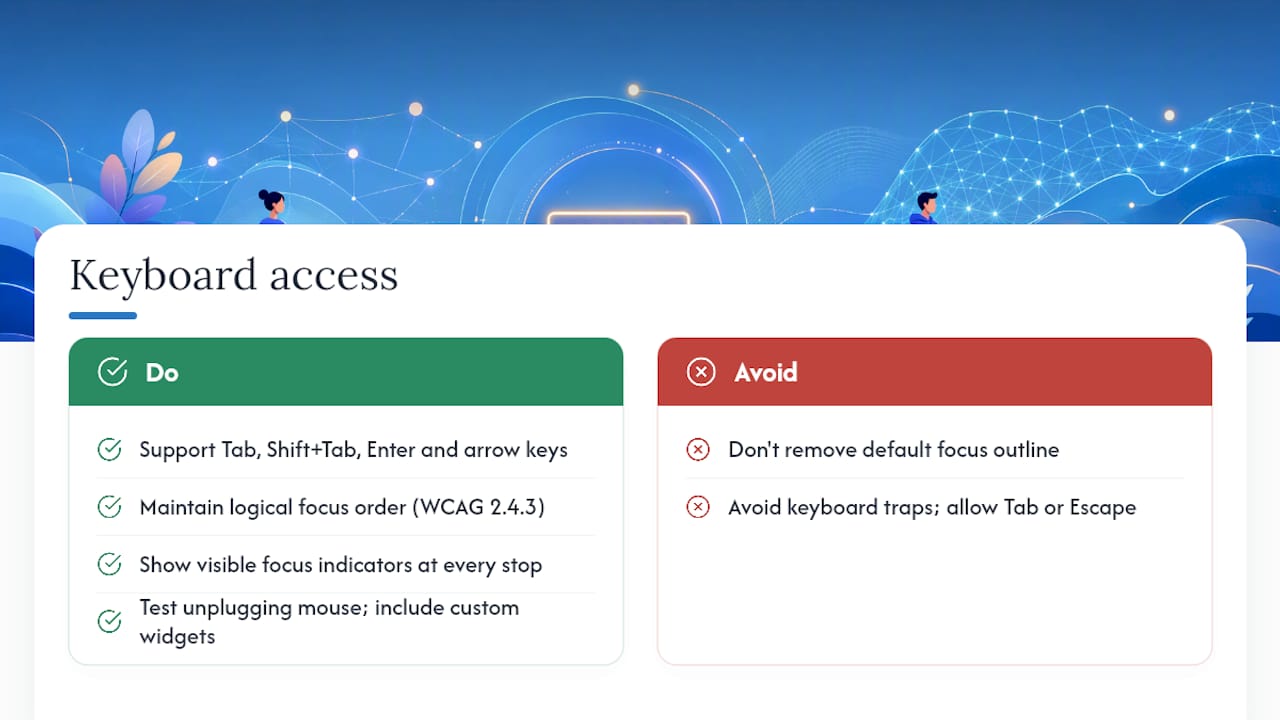
Test this by physically unplugging your mouse and navigating your site’s most important flows: homepage to contact form, product page to checkout, blog post to related article. Focus indicators need to be visible at every stop. Removing the default focus outline with outline: none and not replacing it is one of the single most common accessibility failures on the modern web.
a:focus, button:focus, input:focus {
  outline: 3px solid #0057B8;
  outline-offset: 2px;
}
Watch for keyboard traps too, points where focus enters a component (often a modal or dropdown) and can’t escape with Tab or Escape. Custom date pickers and image carousels are frequent offenders.
Forms and error handling
Every form field needs a programmatically linked label, not just placeholder text that disappears once someone starts typing. This maps to WCAG 1.3.1 and 3.3.2 Labels or Instructions.
<label for="email">Email Address</label>
<input type="email" id="email" name="email" required>
Error handling needs to go beyond a red border. Announce the error in text, tell the user which field it’s attached to, and explain how to fix it. WCAG 3.3.1 Error Identification and 3.3.3 Error Suggestion both apply here.
<label for="phone">Phone Number</label>
<input type="tel" id="phone" name="phone" aria-describedby="phone-error" aria-invalid="true">
<span id="phone-error" role="alert">Enter a 10-digit phone number, e.g. 480-555-0100.</span>
PDFs and office documents
Accessibility rules don’t stop at HTML. PDFs, Word documents, and slide decks posted to your site need the same structural attention: tagged headings, alt text on images, a logical reading order, and searchable (not scanned-image) text. Adobe Acrobat Pro’s built-in accessibility checker will flag most structural problems in an existing PDF. For anything posted regularly, like meeting agendas, menus, or spec sheets, it’s usually faster to fix the source Word or InDesign file and re-export than to patch the PDF directly every time.
ARIA roles and attributes
ARIA (Accessible Rich Internet Applications) attributes exist to patch gaps native HTML can’t cover, mainly custom widgets like tab panels, modals, and comboboxes. The first rule of ARIA is to use it only when you have to. A native <button> needs no ARIA at all. A custom-built dropdown menu does.
<div role="dialog" aria-labelledby="dialog-title" aria-modal="true">
  <h2 id="dialog-title">Confirm Your Appointment</h2>
  <p>Your request has been received.</p>
  <button aria-label="Close dialog">×</button>
</div>
Misused ARIA is worse than no ARIA at all. Adding
role="button"to a<div>without also wiring up keyboard handling and focus management tells a screen reader “this is a button” while leaving keyboard users stranded. Native HTML elements come with that behavior for free. Custom ARIA roles make you rebuild it by hand, and skipping that step is one of the most common accessibility regressions on newly redesigned sites.
Authentication and CAPTCHA alternatives
Image-based CAPTCHAs routinely block screen reader users and people with certain cognitive disabilities. WCAG 1.1.1 requires a text alternative or an accessible equivalent, such as an audio CAPTCHA option or a logic-based challenge that doesn’t depend on visual pattern recognition. If your login flow uses two-factor authentication, make sure the code-entry field accepts pasted codes and doesn’t force character-by-character typing across multiple small input boxes, a pattern that trips up both screen readers and password managers.
Pro Tip: If your team maintains a shared component library, run every new component (modals, tabs, date pickers) through a keyboard and screen reader test before it ships. Fixing one component in the library fixes it everywhere it’s used. Fixing it page-by-page after launch means repeating the same work dozens of times.
How Do You Test a Website for Accessibility Compliance?
Testing works best as a layered sequence, not a single tool run. Here’s the order that catches the most issues with the least wasted effort:
- Run an automated scan first. Tools like Google Lighthouse, Axe DevTools, and WAVE catch structural issues fast, missing alt attributes, low contrast ratios, missing form labels, and heading order problems. Automated tools typically catch a meaningful slice of detectable issues, but a clean report is not proof of full accessibility. ADA guidance is explicit that automated results need manual follow-up before anyone calls a site compliant.
- Do a keyboard-only pass. Tab through every major flow: navigation, forms, modals, filters, checkout. Note anywhere focus disappears, jumps unpredictably, or gets trapped.
- Run a screen reader walkthrough. Use NVDA (free, Windows) or VoiceOver (built into macOS and iOS) to navigate your homepage and one transactional page start to finish. JAWS is the enterprise standard many larger organizations test against, but NVDA and VoiceOver cover the majority of real-world usage for most small business audits.
- Test on mobile. Zoom to 200%, rotate orientation, and check that touch targets aren’t cramped. Mobile screen reader gestures (VoiceOver’s swipe navigation, TalkBack on Android) behave differently than desktop equivalents.
- Complete a real form submission. Fill out your contact form or checkout flow using only keyboard and screen reader. This single test surfaces more real usability failures than almost anything else on this list.
- Bring in actual assistive technology users when the stakes are high. For a major redesign, a government-facing site, or a high-traffic e-commerce flow, paid usability sessions with people who use screen readers daily will surface friction points no internal test catches.
Some things automated tools simply cannot judge: whether alt text is meaningful rather than just present, whether content order makes logical sense to someone navigating linearly, and whether form instructions are actually clear. Those require a human tester every time.
If your team ships code regularly, wire Axe or Lighthouse CI into your build pipeline so pull requests fail automatically when they introduce new contrast or labeling violations. Combine that with a quarterly manual audit and a full assistive-technology sampling once a year, more often for sites that change frequently or carry higher legal exposure.
How to Prioritize Accessibility Fixes
Not every issue deserves the same urgency. Score each finding on two axes: how many users it blocks, and how often they encounter it.
- High impact, high frequency: Fix first. Think broken keyboard navigation on your main menu, or a checkout form that can’t be completed without a mouse.
- High impact, low frequency: Fix soon. A missing transcript on a rarely-viewed but important legal disclosure video.
- Low impact, high frequency: Batch these into a sprint. Inconsistent link text across dozens of low-traffic blog posts.
- Low impact, low frequency: Schedule for later. Minor contrast issues on an archived press release from three years ago.
A realistic timeline looks like this:
- Quick wins (days to two weeks): Alt text audits, form label fixes, focus outline restoration, color contrast token updates.
- Medium fixes (two to eight weeks): Rebuilding custom components with proper ARIA, adding captions to an existing video library, restructuring heading hierarchy site-wide.
- Larger platform work (two to six months): Replacing an inaccessible CMS template, redesigning a checkout flow, retrofitting a large PDF library.
Cost ranges vary enormously by site size and platform, but expect content fixes (alt text, headings, labels) to run cheapest since they’re mostly writer and editor time. Component rebuilds and custom widget remediation cost more because they need developer hours and testing cycles. Full design system overhauls sit at the top end, since every page depending on that system needs re-validation afterward.
Building an Accessibility Policy Your Team Will Actually Follow
A public accessibility statement should cover four things: your organization’s commitment to WCAG 2.1 AA, a contact method for reporting barriers, an expected response timeframe, and a general remediation timeline for known issues. Publishing this isn’t just good practice, organizational commitments like a published statement and assigned ownership are exactly what accessibility consultants recommend as the foundation for defensible compliance.
Internally, set up a simple reporting workflow: a dedicated email or ticket type for accessibility issues, a triage step that assigns severity using the matrix above, a remediation owner, and a verification step before closing the ticket. Skipping verification is how “fixed” issues quietly reappear after the next deployment.
Assign clear roles:
- Content authors own alt text, heading structure, and plain-language writing, including meaningful link text and page structure.
- Developers own semantic markup, keyboard support, and ARIA implementation.
- Product owners own prioritization and make sure accessibility work doesn’t quietly fall out of sprint planning.
Run refresher training annually at minimum, more often if your team turns over quickly. Finally, put accessibility requirements directly into vendor and procurement contracts. If you hire a freelance designer or a new agency partner, require WCAG 2.1 AA conformance in the deliverable language, not as an afterthought once the site is live.
How Webtechs Runs an Accessibility Audit
Webtechs treats an accessibility engagement as a structured workflow, not a one-time scan and a PDF report. Here’s the sequence used for Arizona clients working through remediation:
- Discovery and scope: Identify which pages, templates, and user flows carry the most traffic and the highest legal or business risk.
- Automated scan: Run Axe and Lighthouse across the full site to catch structural and contrast issues at scale.
- Manual verification: Confirm automated findings and catch what scanners miss, alt text quality, focus order, and content sequence.
- Assistive-technology sampling: Test key flows with NVDA and VoiceOver to confirm real-world usability, not just technical pass/fail.
- Prioritized remediation plan: Score every finding using impact and frequency, then map it to a realistic timeline.
- Implementation: Fix issues directly in code, content, or design tokens, depending on where the root cause lives.
- Re-test and validation: Confirm each fix actually resolves the issue without introducing a new one.
Clients typically receive an issue list mapped to specific WCAG success criteria, a remediation guide developers can act on directly, test scripts for future internal audits, and a final validation report once fixes are confirmed. Where possible, fixes get built into shared design tokens and component libraries rather than patched page-by-page, so a corrected contrast ratio or ARIA pattern doesn’t need to be re-fixed every time a new page ships. Every remediation gets documented and version-controlled, which matters if you ever need to demonstrate a good-faith compliance effort to a regulator, auditor, or opposing counsel.
Why Accessibility Is a Business Decision for Arizona Companies
Accessibility gets framed as a legal chore, but for Arizona businesses it’s really a reach problem. A meaningful share of Scottsdale and Phoenix-area customers browse on mobile, often outdoors in bright sun where low-contrast text becomes nearly unreadable to everyone, not just people with visual impairments. Fixing contrast for accessibility compliance also fixes your bounce rate on a sunny patio in July.
Search engines reward the same structural choices accessibility requires: clean heading hierarchy, descriptive alt text, and logical link text all overlap directly with technical SEO fundamentals. Businesses that treat accessibility and SEO as one project instead of two separate checklists tend to move faster on both.
The legal landscape keeps shifting too. DOJ guidance for public entities has staged deadlines, and Title III litigation against private businesses hasn’t slowed down. Treat this as an ongoing maintenance line item, not a project you finish once and file away. A site that passed an audit in 2024 can fail one today if a redesign introduced new components nobody tested.
Get Professional Help Finishing Your Accessibility Remediation
Webtechs is the practical alternative to hiring a specialized accessibility consultant and a separate development shop for Scottsdale and Phoenix-area businesses that need audit findings turned into shipped fixes, not just a report that sits in an inbox. Because Webtechs handles design, development, and content under one roof, remediation work moves straight from finding to fix without a handoff between vendors.
An accessibility engagement typically starts with a full audit against WCAG 2.1 AA, followed by a prioritized remediation plan, hands-on implementation, and a validation re-test to confirm every fix actually holds. You walk away with an issue list mapped to specific success criteria and a site that’s been checked twice, not once. Because the team is based in Scottsdale, ongoing maintenance and future updates don’t require re-briefing an out-of-state vendor every time your site changes.
If you want to see the kind of work involved before committing to a full engagement, browse the Webtechs portfolio or check current website design pricing to get a sense of scope. When you’re ready to talk through your site’s specific gaps, request a professional web design consultation and start with a real audit instead of guesswork.
Where to Go for Authoritative Accessibility Guidance
- Web Content Accessibility Guidelines (WCAG) | W3C WAI: The primary technical standard. Consult this when you need the exact wording of a success criterion.
- Ada: Plain-language overview of common barriers and how ADA law applies to websites.
- Ada: Use this for step-by-step action items and phased compliance deadlines if you work with or for a public entity.
- Ada: Reference for planning steps, timelines, and the equivalent facilitation exception.
- The Americans With Disabilities Act (ADA) Website Compliance | Deque: Practical guidance on organizational measures like accessibility statements and procurement language.
- WCAG 2.2 Website Accessibility Checklist | InclusiveWeb: A practical pre-audit checklist, useful for cross-checking new WCAG 2.2 criteria like Focus Not Obscured and Target Size.
Treat the ADA.gov resources as your go-to for legal timelines and public-entity obligations, and treat W3C’s WCAG documentation as your technical reference when a developer needs the exact letter of a success criterion. If your situation involves procurement contracts, active litigation, or a Title II compliance deadline specific to your jurisdiction’s population size, loop in legal counsel before finalizing a remediation plan. None of these resources substitute for that conversation when real liability is on the table.
FAQ
What is the difference between WCAG and ADA compliance?
WCAG is a technical standard published by the W3C that defines specific, testable success criteria for web accessibility. ADA is U.S. civil rights law that prohibits discrimination based on disability. DOJ guidance and most court rulings treat WCAG 2.1 AA as the practical benchmark for satisfying ADA obligations online, but ADA itself doesn’t name a technical standard in the statute text for private businesses the way the 2024 Title II rule does for public entities.
Do small businesses in Arizona need to worry about ADA website compliance?
Yes. Title III of the ADA applies to private businesses operating as places of public accommodation, and courts have increasingly extended that definition to commercial websites regardless of business size or state. Arizona businesses have faced accessibility-related demand letters and lawsuits, so treating WCAG 2.1 AA as a working target reduces that exposure regardless of company size.
How often should I re-test my website for accessibility?
Run automated scans continuously through CI/CD if your team ships code regularly, do a full manual audit quarterly, and schedule assistive-technology sampling with real screen reader users at least once a year, more often after major redesigns or new feature launches.
Can I rely on an automated accessibility checker alone?
No. Automated tools like Lighthouse and Axe catch a meaningful share of structural issues, but they cannot judge whether alt text is meaningful, whether content order makes sense, or whether a screen reader user can actually complete a task. Manual and assistive-technology testing are required for a defensible compliance claim.
What is the fastest accessibility fix with the biggest impact?
Restoring visible keyboard focus indicators and auditing form labels usually deliver the highest impact for the lowest development effort. Both issues block entire user journeys, and both are typically fixable within days rather than weeks.
This article is general information, not a substitute for advice from a qualified lawyer. Consult a qualified legal professional about your own circumstances before acting on anything here.
Sources
- Web Content Accessibility Guidelines (WCAG) | W3C WAI
- Ada
- Ada
- Ada
- The Americans With Disabilities Act (ADA) Website Compliance | Deque