

Merge Duplicate Google Business Profiles: 7 Steps for U.S. Firms

Yes, merging duplicate Google Business Profiles is possible, but only when both listings represent the same business at the same physical address with matching information. When Google approves a merge, reviews from the duplicate typically combine into the surviving profile, though replies to those reviews can be lost in the process. The next section covers the exact eligibility rules, and the sections after that walk through the steps to request a merge and protect your data first.
TL;DR:
- Storefront and service area listings often cannot merge; standardize address formatting, business name, and operating model before submitting to avoid common rejections.
- If another person owns a listing, request access first; Google may take three days to respond and seven more days to grant full management rights.
- Submit both Maps URLs through a Maps duplicate report or Support case, identify the surviving profile, and attach ownership proof and location documentation.
- Save screenshots of reviews and replies, download photos, and copy Q&A and business details before requesting a merge; transfers can take several days.
- Follow up with Google Support after 72 hours without a response, then check again at one week and two weeks if the case remains open.
Table of Contents
- Eligibility and Rules for Merging Business Profiles
- How to Prepare, Claim Access, and Submit a Merge Request
- What Happens to Reviews, Photos, and Posts After a Merge
- Common Rejection Reasons and Quick Fixes
- Agency Pre-Merge Checklist for Profile Managers
- Why a Single Clean Profile Matters More Than People Think
- How WebTechs.Net Supports Profile Cleanup and Merges
- FAQ
- Sources
Eligibility and Rules for Merging Business Profiles
Google will only combine two listings when they clearly describe one business. Before requesting anything, check your profiles against these conditions:
- The listings represent the same business, not two separate entities that happen to share a name
- Both profiles show the same physical address, formatted the same way (consistent abbreviations, suite numbers, and spelling)
- The business name matches exactly or is a close variant, not a different brand or franchise name
- Both profiles use the same business model, either storefront or service-area, since Google often blocks merges between the two types
Storefront businesses with a public address and service-area businesses that hide their address and list a service region are treated differently by Google’s systems, and mismatched models are a common reason merges get rejected. There are legitimate exceptions, too: multiple practitioners working from one address (a dental office with several dentists, for example), franchise locations that share a building, or genuinely distinct businesses at the same address are not duplicates and should stay separate.
If Google mistakenly flags a distinct business as a duplicate, you can appeal through Google’s duplicate resolution help page, which outlines the right action for each scenario, including incorrectly merged listings.
How to Prepare, Claim Access, and Submit a Merge Request
Once you have confirmed two profiles meet the eligibility rules, work through these steps in order:
- Identify both duplicates and copy their Google Maps URLs. You will need both links for every later step.
- Check ownership of each listing. If someone else manages the duplicate, request ownership through the profile and expect up to a three-day response window, plus a possible seven-day wait before you gain full management rights.
- Choose a submission route. Report a suggestion on Google Maps by selecting “Duplicate of another place” on the listing you want removed, or open a case directly with Google Business Profile Support.
- Include both Maps URLs in your message, along with a clear statement of which listing should survive and which should be treated as the duplicate.
- Attach supporting documentation: proof of ownership, photos of your storefront signage, business registration paperwork, and anything else that ties you to the location.
- Wait, then follow up. Google’s own guidance suggests following up with support if you have not heard back within 72 hours, and checking again at the one-week and two-week marks if the case remains open.
Pro Tip: Save a copy of your support ticket number and the exact wording of your request so you can reference it quickly if you need to follow up or escalate.
Community troubleshooting threads describe this same sequence in practice: collect the URLs, confirm or request ownership, submit with documentation, and follow up if the request stalls, as detailed in this Google Business Profile Community thread.
What Happens to Reviews, Photos, and Posts After a Merge
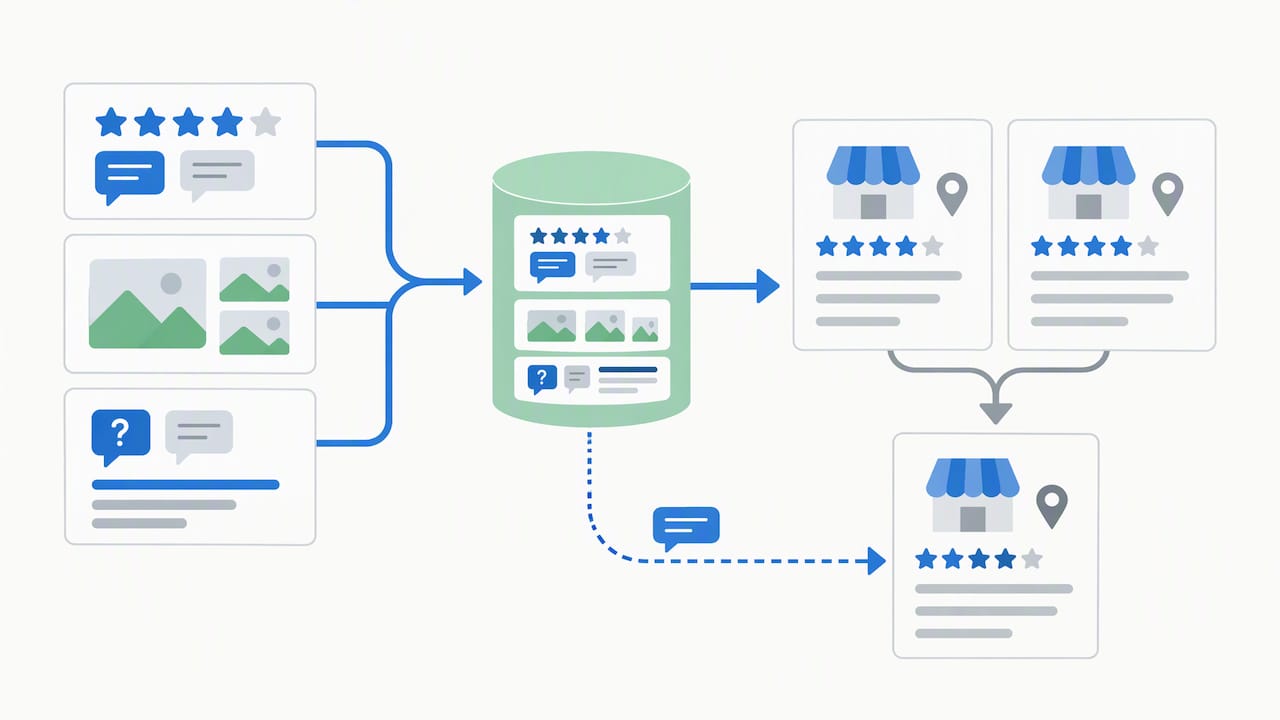
Merging two profiles is not a clean swap. Google typically combines reviews from the duplicate into the profile that survives, but several things can go missing along the way.
- Reviews usually move over and attach to the surviving listing
- Replies you wrote to those reviews are at risk of disappearing during the transfer
- Photos and some post content often carry over, though not always completely
- The transfer itself can take several days rather than happening instantly
Review transfers are not instantaneous and typically take several days to complete, and Google explicitly recommends saving a record of your reviews before starting a merge, according to Google’s Business Profile Help. In certain cases, such as an ownership change or a business relocation, Google may move reviews automatically, but not every change or business category qualifies, as noted in Google’s guidance on moving reviews across profiles.
Before you request anything, take screenshots of every review and your replies, download your photo library, and copy your Q&A section and business description into a separate document. If a reply disappears during the merge, having a record lets you repost it manually, and this is also a good moment to review best practices for responding to Google reviews so you can rebuild your reply history efficiently afterward.
Common Rejection Reasons and Quick Fixes
Merge requests get rejected more often for small formatting issues than for genuine ownership disputes. Here is what typically goes wrong and how to correct it:
- Address mismatch, such as “St.” on one listing and “Street” on the other: standardize the formatting on both profiles before resubmitting, and review our NAP consistency guide for the formatting rules Google expects.
- Both profiles verified: remove your account’s ownership from the listing you want retired so Google can register it as unverified, then resubmit.
- Storefront versus service-area mismatch: confirm which model actually fits your business and update the incorrect profile to match before requesting the merge again.
- Ownership mismatch: request access from the current owner through Google’s standard ownership request flow, and keep registration documents on hand in case you need to prove your claim.
- Listing should not be merged at all: if a profile belongs to a closed business or a true duplicate with no active owner, marking it “Permanently closed” or reporting it as a duplicate may resolve the issue faster than a merge request.
Agency Pre-Merge Checklist for Profile Managers
A little preparation prevents most of the back and forth with Google Support. Work through these steps before you submit anything:
- Capture a before snapshot: screenshot every review, reply, photo, and Q&A entry, and export your Insights data if you have access to it.
- Gather ownership proof: business registration documents, signage photos, and listings in other online directories that match your business name and address.
- Decide which profile should survive, usually the one that is verified, has more reviews, and shows the correct address, then update your website links to point to it.
- Assign one person to own the process and set follow-up reminders for 72 hours, 7 days, and 2 weeks out, matching the response windows Google documents.
Pro Tip: Keep one shared document with both Maps URLs, your ownership proof, and your follow-up dates so anyone on your team can pick up the case without starting over.
If you are managing multiple locations, practitioner listings, or a tangled ownership history, that complexity is usually the signal to bring in a local SEO provider rather than keep troubleshooting alone.
Why a Single Clean Profile Matters More Than People Think
Duplicate profiles split your review history and confuse both customers and search algorithms trying to decide which listing to trust. A business with two half-populated profiles rarely outperforms one with a single, fully built-out listing, no matter how good the individual reviews are.
Consistent name, address, and phone details across one verified profile feed directly into local ranking signals, which is the real reason cleanup matters beyond tidiness. When the process gets complicated, bringing in an experienced local SEO provider often resolves it faster and with less risk of losing review history than handling it solo.
How WebTechs.Net Supports Profile Cleanup and Merges
Cleaning up duplicate listings takes patience, exact documentation, and a willingness to wait out Google’s review windows, and we handle that process for clients so you do not have to track support tickets between everything else on your plate. Our local SEO services include hands-on support for claiming ownership, preparing the documentation Google asks for, and managing the back and forth with Google Business Profile Support until a case closes.

A typical engagement includes:
- A full audit of your existing profiles and a written summary of what needs to change
- An archived record of your reviews, replies, and photos before we touch anything
- Submission and tracking of your support case, including follow-up at the windows Google recommends
- Post-merge verification and optimization so your surviving profile is fully built out
If duplicate listings are costing you reviews or visibility, reach out through our website and we will walk you through what a cleanup looks like for your business.
FAQ
How do I get rid of a duplicate Google Business Profile?
Report the duplicate on Google Maps by selecting “Duplicate of another place,” or open a case with Google Business Profile Support and include both listing URLs. Include proof of ownership and a clear statement of which profile should remain active.
Is there a way to merge two Google profiles?
Yes, but only when both profiles represent the same business at the same address with matching details, since Google does not offer a one-click merge button. You typically need to unverify one listing and submit a request through Maps or Support with documentation.
Can I merge two Google Workspace accounts into one?
Google Workspace account consolidation is a separate process from merging Business Profile listings and is not covered by the duplicate profile tools discussed here. Check with Google Workspace support directly for account-level migration options.
Can I transfer my Google Business Profile from one account to another?
Yes, you can add a new owner or manager to your profile and then remove the previous account, which effectively transfers control. New owners may face a waiting period of up to seven days before gaining full management rights, as noted in Google’s user access guidance.
Sources
For the exact rules and troubleshooting steps referenced above, check Google’s own Business Profile Help pages and the community threads linked throughout this guide.
- Resolve duplicate profiles & ownership issues — Google Business Profile Help
- How to Merge Duplicate Profiles – Google Business Profile Community